Cloud Tree Help Center

Cloud Tree Help

This guide is intended for signed-in Cloud Tree users and covers the full operating workflow: Local Agent setup, remote scan/create, workspaces, branding, custom domains, and billing.

Follow Quick Start in order when setting up a new machine. Most setup failures come from doing steps out of order.

Supports local and remote catalogs Workspace collaboration (Premium) Custom domain and branding Passcode-locked catalogs

Setup Path

Quick Start In The Correct Order

  1. Log-in to the Admin site
    Start on the Admin page. This is the main page where you will create and manage catalogs. It is also where you will first pair with your local agent when installed. Settings provides many options related to agent pairing and the ability to customize your experience.
  2. Choose your runtime
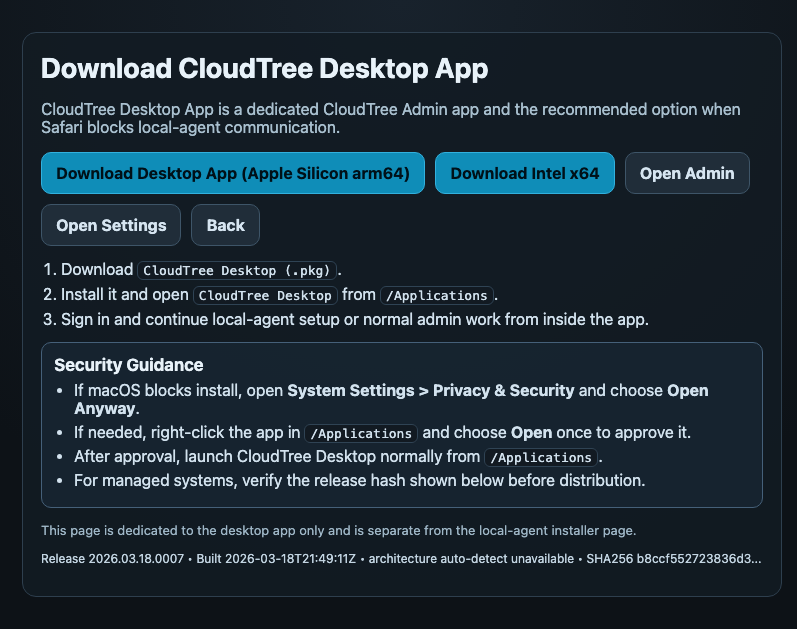
    You can create catalogs on this site usingChrome or Firefox for browser-based control. Safari is not compatible. We offer a standalone Cloud Tree Desktop App that offers the best native experience. CloudTree Desktop App.
  3. Install and open the Local Agent on the Mac that has drives attached
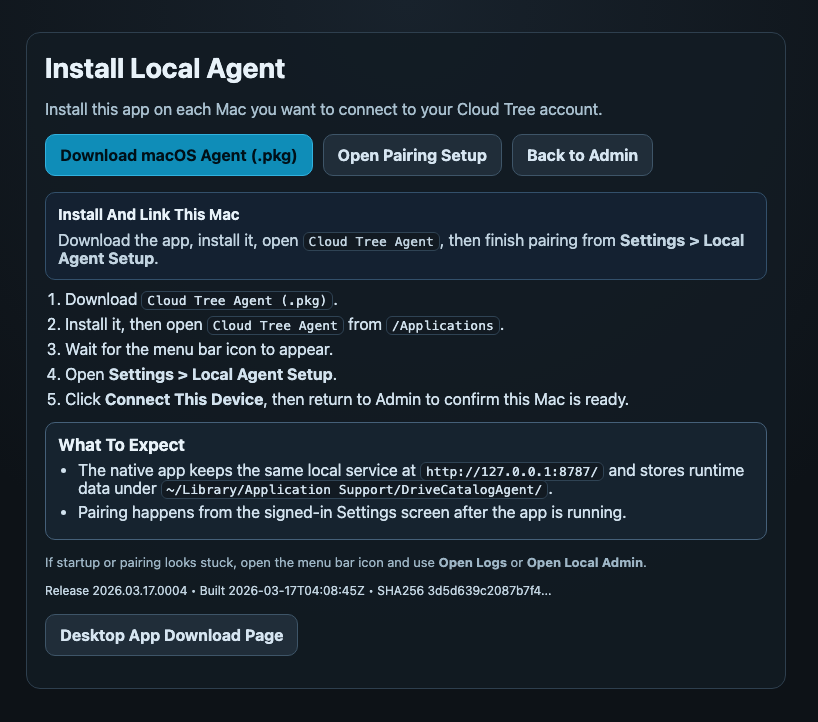
    Download from /downloads, install the pkg, open Cloud Tree Agent, and leave it running. This step is required for Cloud Tree to work.
  4. Pair this Mac in Settings
    Go to Settings - Local Agent Setup, click Connect This Device, and confirm the checklist reaches linked state. This step is how Cloud Tree can catalog your drives.
  5. Return to the main Admin page and you should be connected to your local agent.
    If you do not show connected in Admin, confirm Agent URL is http://127.0.0.1:8787, click Connect, then Refresh Volumes. If you are still not able to connect, visit the settings page for more options.
  6. Create your first catalog
    Set Catalog Scope (Personal or Workspace), enter Project Name, choose a mounted volume, then click Create Catalog. Copy URL and/ or QR code from the result card. Personal catalogs are visible only in your own account. Workspace catalogs are available to all Workspace members.

Optional: use Custom Path Override when you need a specific folder path. If drag-drop cannot resolve a full path due browser limits, paste an absolute path manually (example: /Volumes/DriveName/Folder).

Local Agent download page.
Local Agent download page with install and pairing steps.
Desktop app download page.
Desktop App download page for standalone access to admin.

Admin

Catalog Creation And Daily Operations

Create Catalog

  • Project Name becomes the display title and QR label text.
  • Mounted Volume includes local and remote groups when available.
  • Custom Path Override supports absolute path targeting.
  • Include hidden files/folders toggles dot-file indexing.
  • Creation runs an initial scan and publishes the catalog link automatically.
Catalog Table Controls

  • Workspace filter: All Workspaces, Personal, or a specific workspace.
  • Show filter: All drives or Online only.
  • Sort: Last scan, Creation date, or Agent (A-Z / Z-A).
  • Scan All triggers scans on currently scannable catalogs.

Per-Catalog Actions

  • Copy URL
  • Lock/Unlock with per-catalog passcode (minimum length 4)
  • Scan (local if mounted, or remote command when owning agent is online)
  • Rename
  • Export backup JSON
  • Delete

Bulk Actions

  • Select multiple catalogs with row checkboxes or select-all.
  • Delete Selected removes selected catalogs.
  • Add to Workspace and Remove from Workspace open workspace picker modal.
Indicator Meaning
Online (green) Drive is mounted now, either on this machine or remotely on owning agent.
Offline (red) Owning agent reports drive is not mounted.
Unknown (neutral) No fresh mount heartbeat yet (agent disconnected or stale status window).
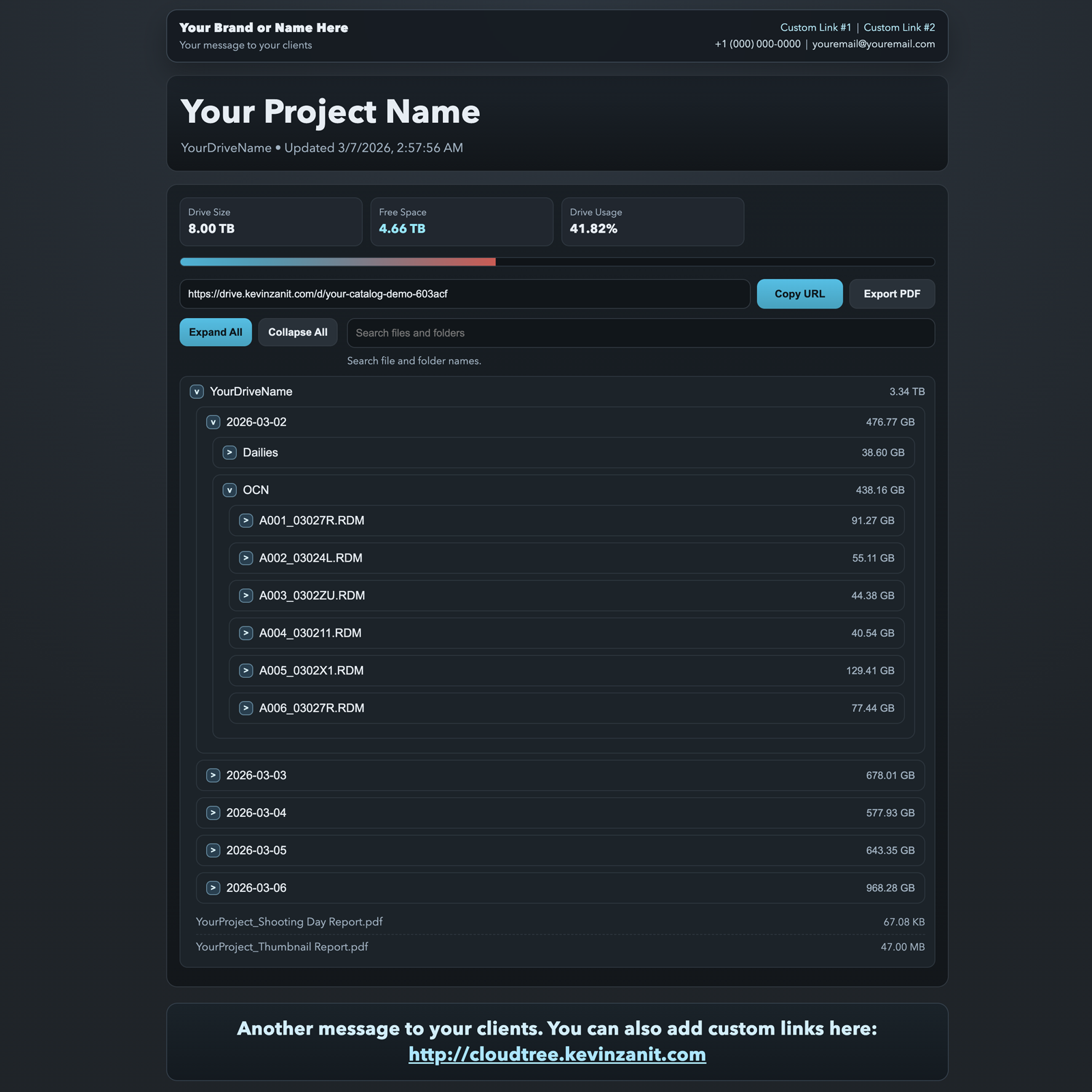
Public catalog page with searchable file tree.
Published catalog page with search and expandable folder tree.
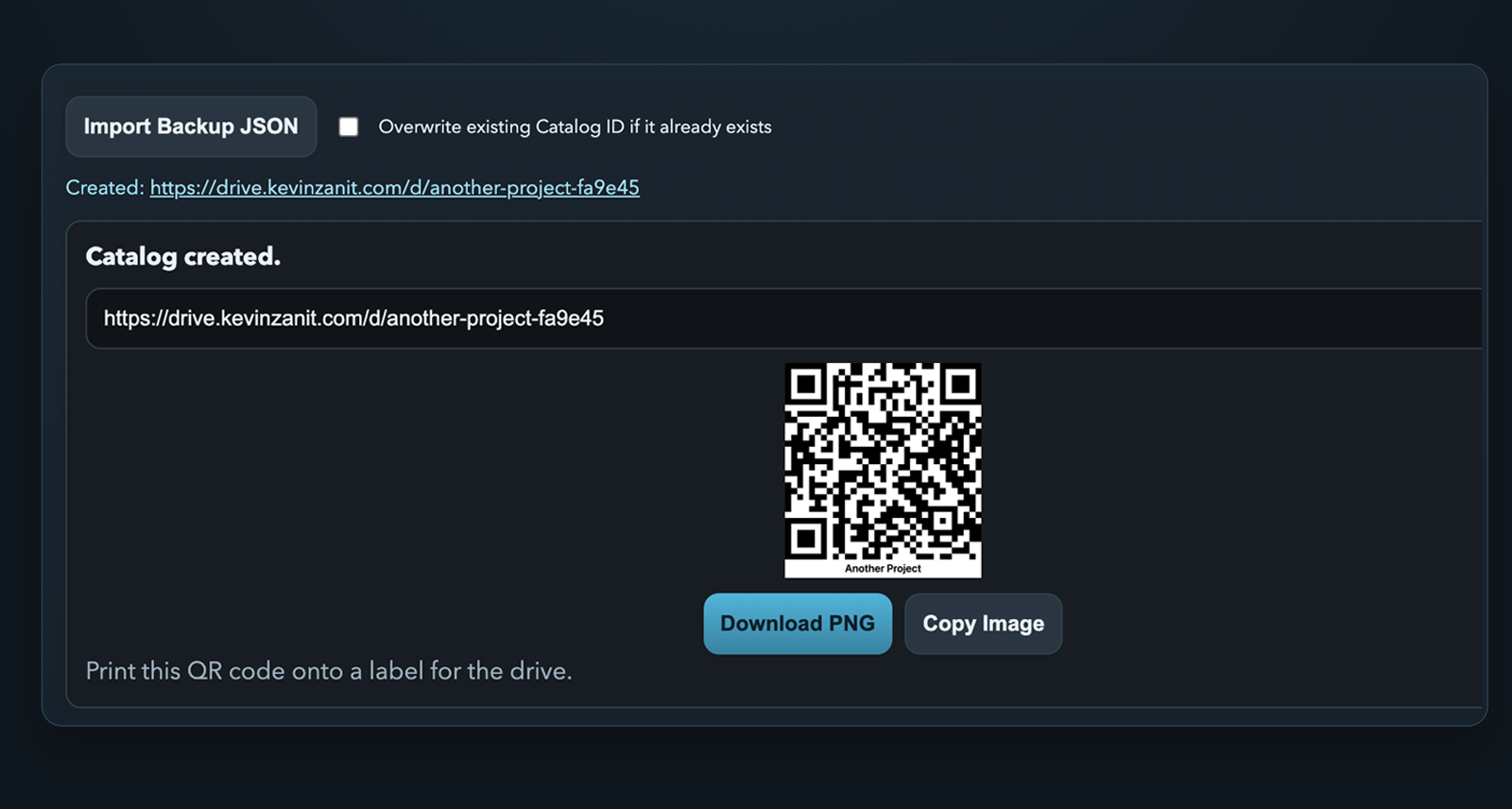
Cloud Tree QR label and share link preview.
QR labels and share links for faster handoff and drive labeling.

Collaboration

Team Workspace (Premium)

How It Works

  1. Create a workspace in Settings.
  2. Select that workspace.
  3. Invite members by email.
  4. Create catalogs directly into that scope from Admin.

Roles

  • Admin: invite/remove members, manage workspace membership and settings.
  • Operator: create and run workspace catalogs.

Invites

  • Invites appear as floating cards in Admin and Settings.
  • Actions: Accept, Reject, or Dismiss for now.
  • Rejected invites are visually marked and can be cleared by workspace admins.
  • User must have a Premium subscription to be part of/ accept an invite to a workspace.

Workspace Deletion

  • Bulk Delete supported.
  • Members and pending invites are removed.
  • Catalogs remain in personal account records.

Important distinction: Catalog Scope near creation controls where new catalogs are created. The Workspace filter in the catalog table only changes what you are viewing.

Settings Reference

What Each Settings Panel Controls

Billing

  • View plan, subscription status, renewal/trial, and limits.
  • Upgrade to Premium, add agent seats, open billing portal.
  • Custom domain setup purchase/activation path starts here.

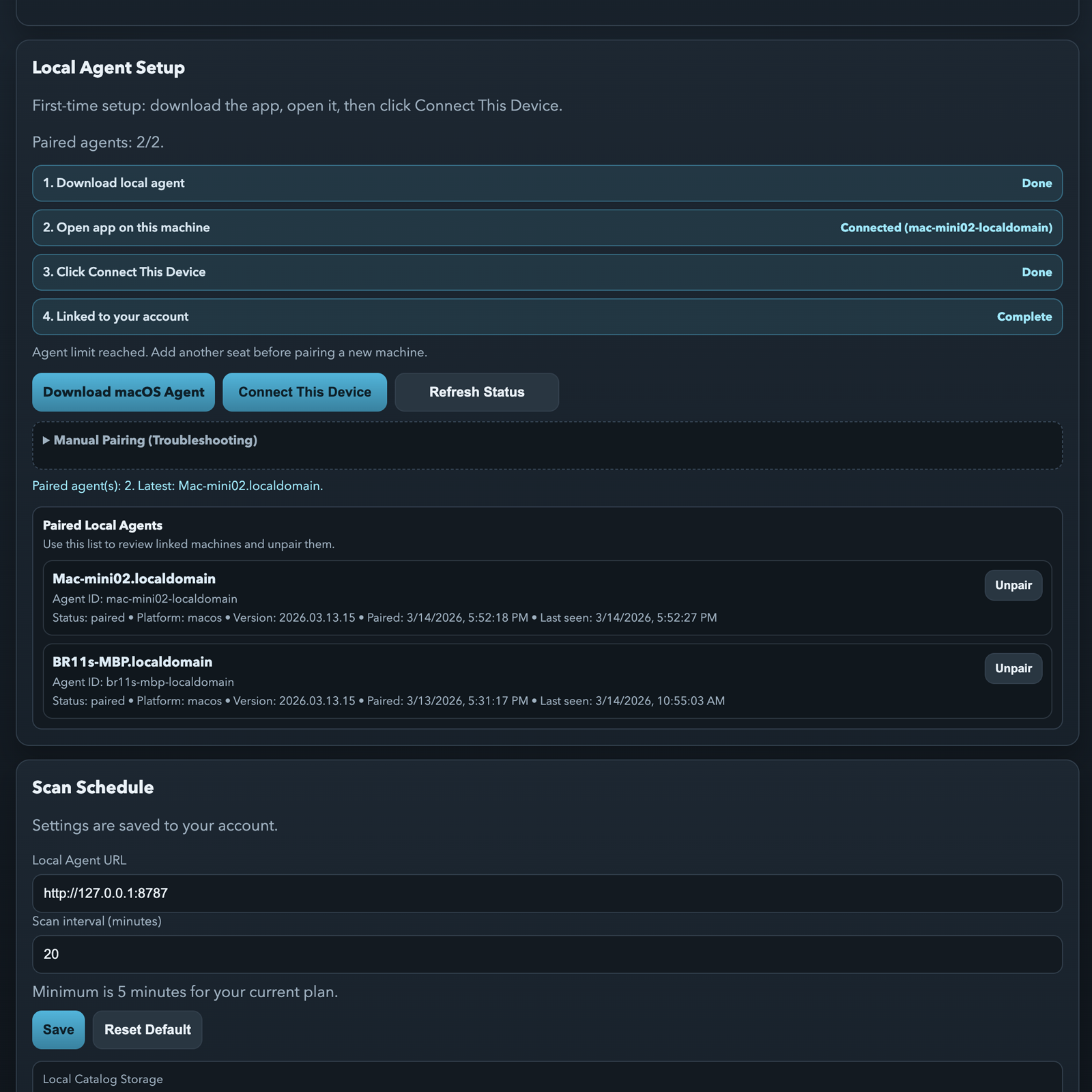
Local Agent Setup

  • Checklist-based pairing workflow with one-click connect.
  • Manual pairing fallback for troubleshooting.
  • Paired local agents list with unpair support.
  • Desktop App link for Safari users.

Scan Schedule

  • Set local agent URL and scan interval.
  • Free minimum: 15 minutes. Premium minimum: 5 minutes.
  • Save and reset controls with current storage summary shown in Settings.

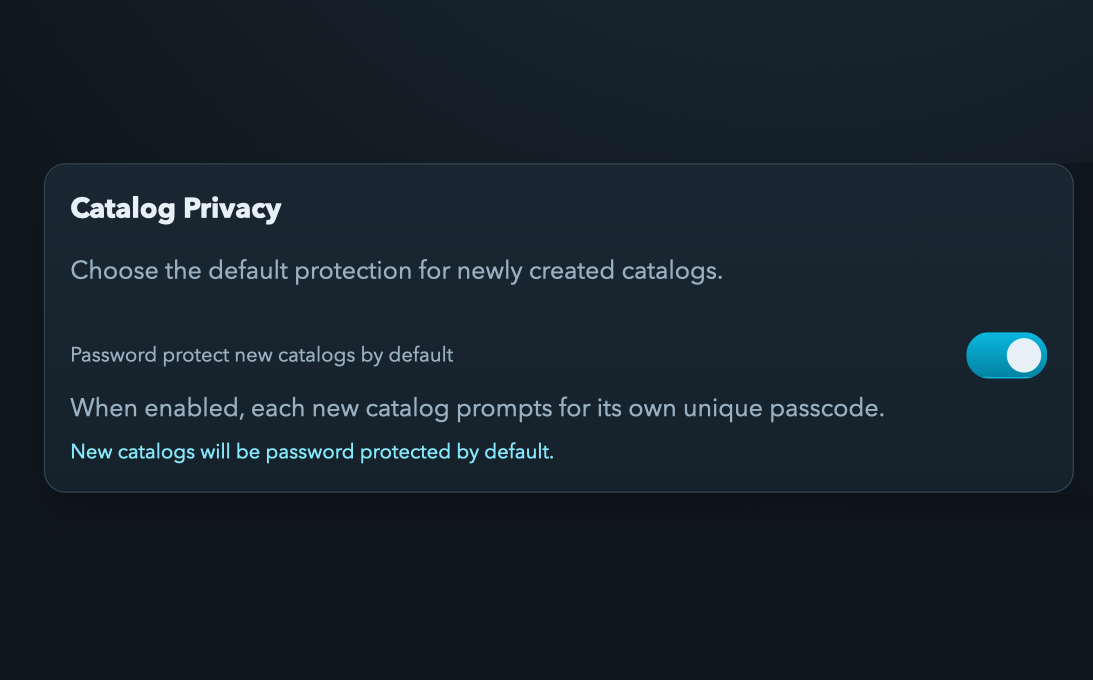
Catalog Privacy

  • Default toggle: password-protect newly created catalogs.
  • Each protected catalog uses its own passcode.

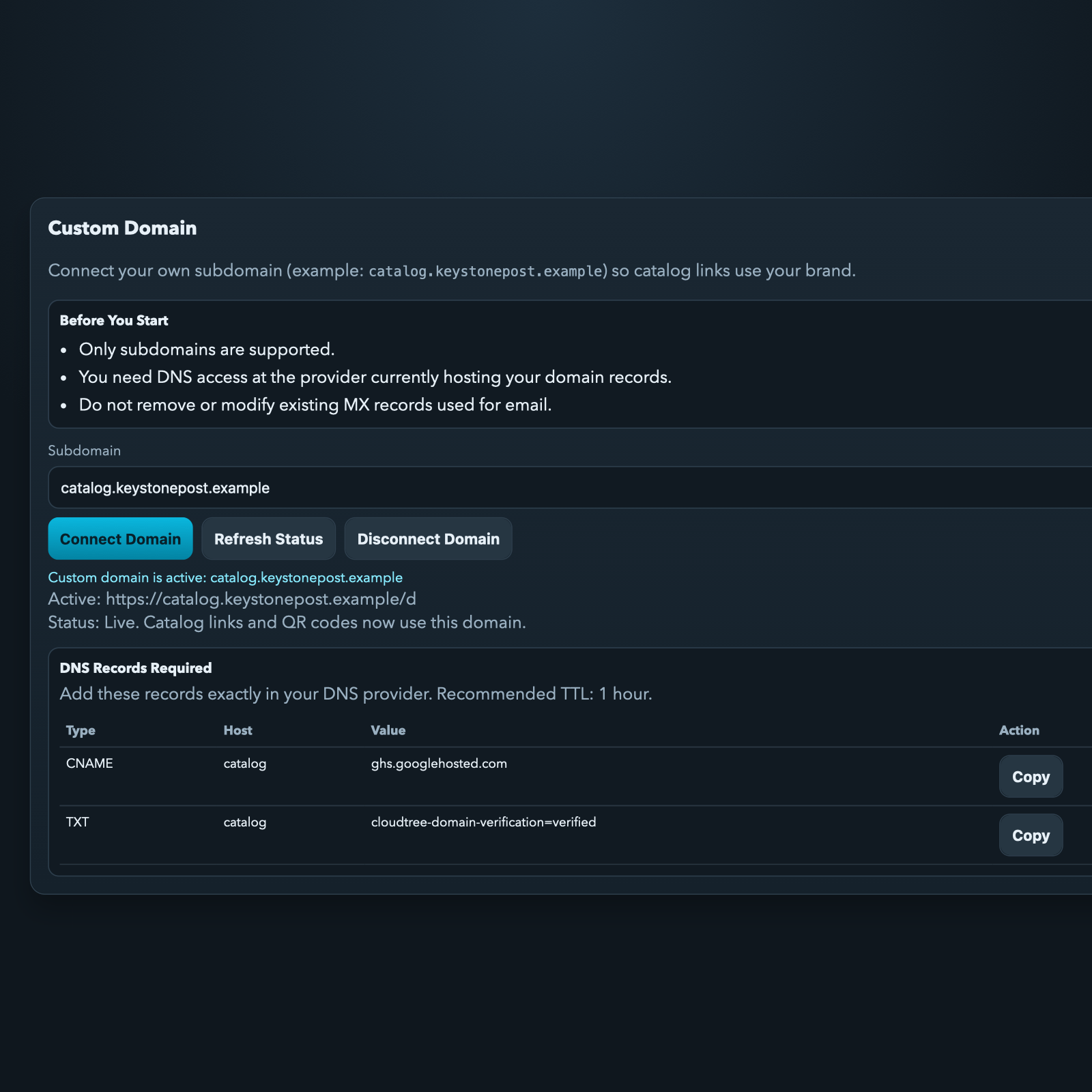
Custom Domain

  • Connect subdomain only (example: drive.yourdomain.com).
  • Get exact DNS rows, refresh provisioning state, disconnect if needed.
  • When active, catalog links and QR links use that domain.

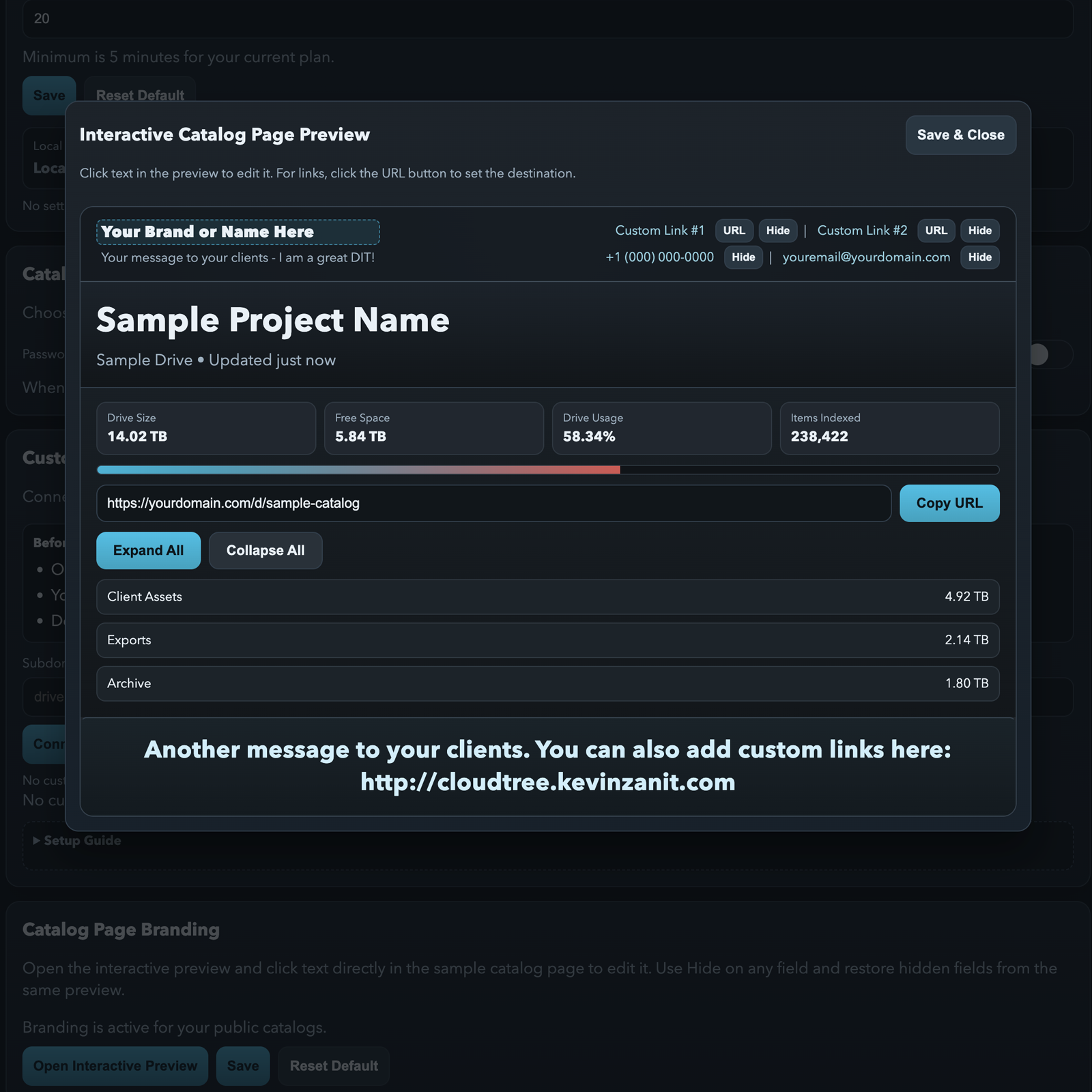
Catalog Branding

  • Interactive preview edits brand name, tagline, links, labels, footer text.
  • Premium can activate branding and toggle "Catalog created by Cloud Tree" footer visibility.
  • Reset restores default branding values.
Local Agent setup and paired agents panel in Settings.
Local Agent setup checklist, pairing controls, and paired-agent management.
Custom domain setup panel with DNS records in Settings.
Custom domain connection flow with exact DNS records and status.
Catalog branding interactive preview modal in Settings.
Branding preview editor used to style client-facing catalog pages.
Catalog privacy default protection toggle in Settings.
Privacy defaults panel for auto-locking newly created catalogs.

Recipient Experience

Public Catalog Page Features

Core Viewer Tools

  • Searchable folder/file tree with live filtering.
  • Expand All / Collapse All controls.
  • Copy URL button and printed QR compatibility.

PDF Export

  • Generate print-ready PDF with branding and QR cover page.
  • Includes row limit and orientation controls.
  • Password-protected online catalogs still export non-password PDF files.

Passcode Unlock

  • If catalog is locked, viewer sees unlock form before tree loads.
  • After unlock, the catalog opens normally for the current browsing session.

Recovery

Backup And Restore

Export

Use Export on any catalog row to download a backup JSON package. This gives you a portable backup you can archive or move.

Import

Use Import Backup JSON in Admin. Optionally enable overwrite to keep an existing catalog ID. Import restores the catalog into your admin account.

Troubleshooting

Common Issues And Fast Fixes

Safari Cannot Connect To Local Agent

This is expected. Use Chrome/Firefox for browser pairing, or run CloudTree through the Desktop App.

Catalog Created But "Did Not Publish To Cloud"

Verify Local Agent pairing and network reachability. Re-run scan after confirming the agent is linked in Settings and alive in Admin.

Drive Shows Unknown/Offline Incorrectly

Unknown means no fresh heartbeat yet from the owning agent. Keep agent running and allow refresh cycle to update mounted-volume inventory.

Password Reset 400 Errors

Retry from the standard login page and confirm the account email is correct. If your branded domain login is restricted, use the main Cloud Tree login host.

Custom Domain Login Denied

Custom domains are account-scoped. Sign in through cloudtree.kevinzanit.com if your account is not the owner of that branded host.

Remote Volume Not Appearing

Confirm remote machine is paired and agent is running under the same user account/workspace permissions. Mounted-volume inventory must sync before it appears in dropdown.